Satelit for Android and Wear OS
In short
Satelit for Android is the Satelit app on your phone, with widgets on the home screen, emergency alerts, waking to the word “Satelit” without internet and Satelit as the phone's assistant. On Google Play it still carries the “Coming soon” label; until then, Satelit works in the phone's browser, at app.satelit.md, and installs as an app from the browser.
What is Satelit for Android?
Satelit for Android is the Satelit app for Android phones, with the same screens as in the browser and a few things only a phone can do. It opens the same account as on the web: budgets, lists, the calendar and the assistant are the same, and what one family member adds appears for everyone.
Besides the usual screens, the app adds:
- widgets on the home screen, in the light and the dark theme;
- emergency alerts that ring even with the phone on silent;
- waking to the word “Satelit”, recognised on the phone, without internet;
- Satelit as the phone's assistant, on the power button;
- the app for Wear OS watches.
The phone app needs Android 8.0 or newer.
How do I get the app?
On the satelit.md apps page, Android still carries the label “Coming soon to Google Play”. The link appears there on the day Google Play publishes the app.
Until then:
- Open app.satelit.md in the phone's browser.
- Sign in to your Satelit account.
- From the browser menu, choose to install it as an app. Satelit appears on the home screen, with its icon.
The account and the data stay the same when you later switch to the app from the store.
How do I make Satelit the phone's assistant?
Satelit can replace the phone's default assistant: you press and hold the power button and Satelit listens to you, over any app and on the lock screen.
- Open the voice settings in the Satelit app, the “The phone's assistant” section.
- Tap “Set as default”.
- On the screen Android opens, choose “Digital assistant app”, then Satelit.
- Return to the app. The row shows “Satelit is the default assistant.”
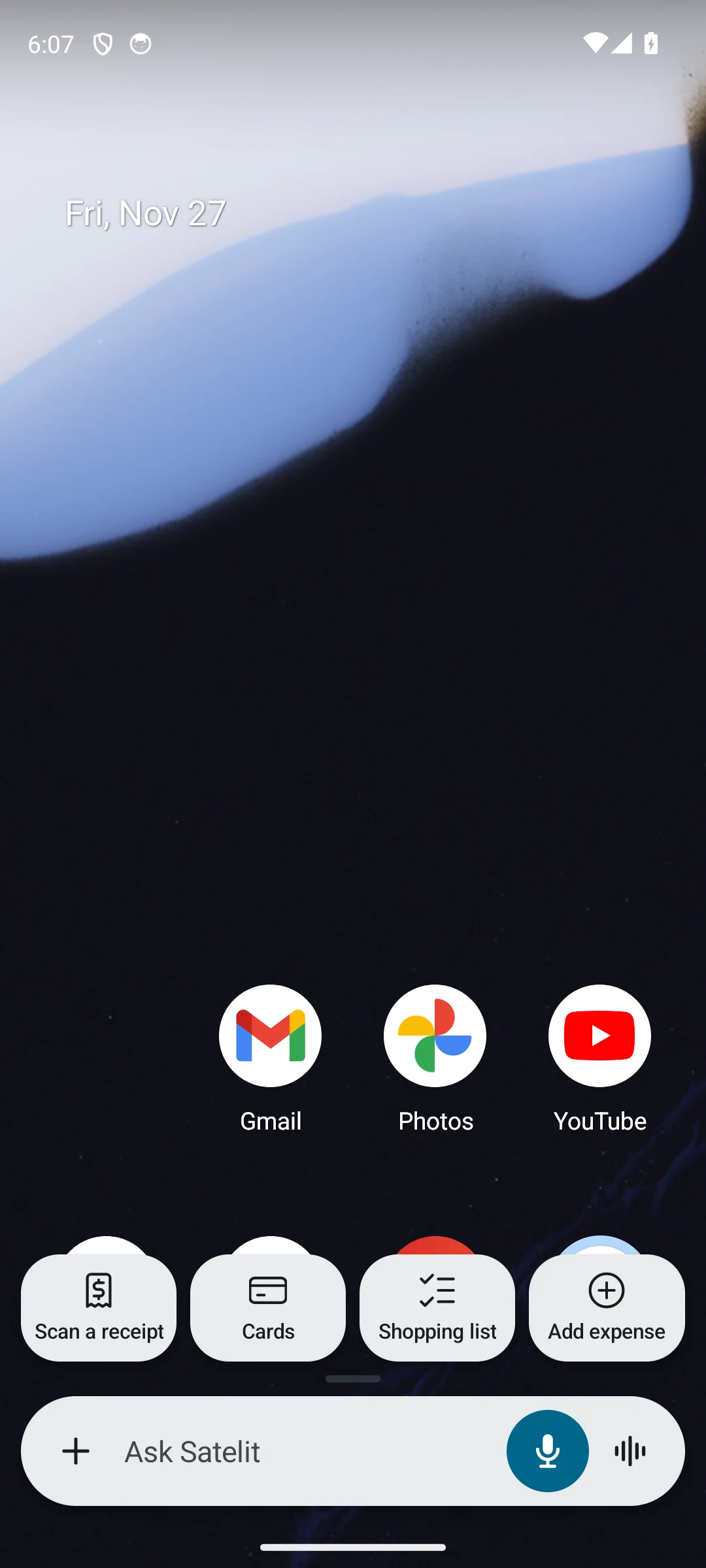
The assistant appears in your phone's colours, light or dark as the phone is. At the bottom is a field for your question, with the “+” button (photo, camera, file), the microphone and the voice mode. The answer opens in a card above the field, which you can expand, open in the app or close.
Above the field are the shortcuts: at first “Scan a receipt”, “Cards”, “Shopping list” and “Add expense”. A tap opens that screen in the app. In the voice settings, under “Shortcuts”, you choose 4 to 6 of them and their order; you can also add prices, budgets, the calendar, notifications, Messenger, health and product scanning.
With the “Use what is on the screen” option on, Satelit receives the text on the screen for the question, never a screenshot. While the phone is locked, the assistant uses only tools that do not show private data.
How do I turn on waking to “Satelit”?
Waking to the name opens the voice without touching the phone: you say “Satelit” and the question.
- In the voice settings, under “The phone listens for “Satelit””, turn on “Always listen for the name”.
- Under “When it listens”, choose “Always”, “Charging” or “Screen on”.
- Under “Sensitivity”, choose “Less”, “Normal” or “More”.
The name is recognised on the phone, without internet. Nothing leaves the phone until the name. Below 15 % battery, waking stops by itself. On the phone, always-on waking listens only for “Satelit”; names you choose yourself stay for the open app.
How do I turn on emergency alerts?
Emergency alerts are notifications that ring like an alarm: earthquake, drones, war risk, smoke or a water leak at home.
- Open Notifications → Settings.
- Under “Emergency alerts”, tick “Full volume”, so the alert rings at the alarm's maximum volume.
- Tick “Ignore Do Not Disturb”, so the alert also rings with Do Not Disturb on. Android asks you for access once.
- Tap “Check the alert”. The phone shows a “Test alert” and tells you how it sounded.
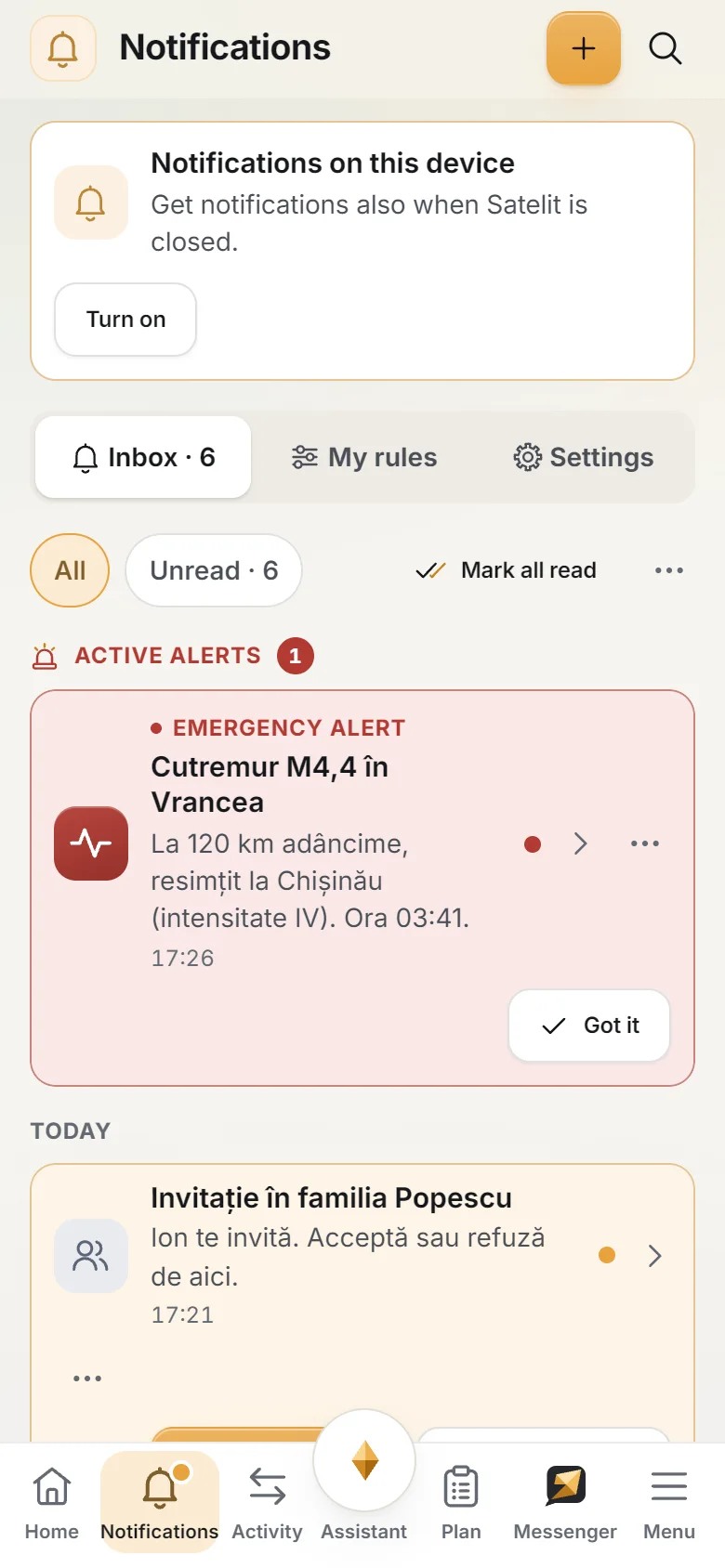
An alert rings for at most 60 seconds. “Got it” stops the sound and puts the volume back as it was.
How do I put a widget on the home screen?
Every widget on the Home page also exists as an Android widget, in the light and the dark theme.
- Press and hold an empty spot on the home screen.
- Choose “Widgets”, then Satelit.
- Drag the widget you want onto the screen.
Widgets with the family's money show amounts as “•••• lei” by default. In the widget's settings you can turn on “Show amounts on the home screen”. While the phone is locked, the amounts stay hidden anyway.
What does the app do on a Wear OS watch?
The watch app shows on your wrist the same cards as the phone's widgets, plus tiles, complications on the watch face, the phone's notifications and emergency alerts. It needs Wear OS 3 or newer and a phone with the Satelit app, connected to the watch.
- You choose what appears on the watch in the watch's settings, under “What the watch shows”.
- Cards are kept on the watch and can be seen even without the phone near, with their age (“3 h ago”).
- Money amounts appear only with “Show amounts” on and the watch unlocked. Complications on the watch face always show amounts hidden, because anyone near you can see them.
If something goes wrong
The test alert did not ring
Check that Satelit notifications are turned on in the phone's settings. If Do Not Disturb was on, tick “Ignore Do Not Disturb” and give the access Android asks for. The “So alerts arrive” screen shows what is missing, with a button for each item.
Waking to “Satelit” is paused
The status row says why: a call, another app using the microphone, the battery below 15 % or the chosen mode (“Charging”, “Screen on”) does not match right now. If it says “Microphone not allowed”, open the phone's Settings → Apps → Satelit → Permissions → Microphone.
The power button opens another assistant
The row under “The phone's assistant” shows “Another assistant is the default now.” Tap “Set as default” again and choose Satelit. Some phones have no default assistant to choose; then the row says so.
The watch shows “Phone not nearby”
The watch shows the last copy it kept. Bring the phone closer, check the Bluetooth connection between them and open the app on the watch: the cards refresh by themselves.
Frequently asked questions
Where do I download Satelit for Android?
The app is not yet published on Google Play, and the satelit.md apps page says “Coming soon to Google Play”. Until then, you open app.satelit.md in the phone's browser and install it as an app from the browser.
Which Android version do I need?
The phone app needs Android 8.0 or newer. The watch app needs Wear OS 3 or newer.
Is the phone listening to me all the time?
Only if you turn on “Always listen for the name”. The name “Satelit” is recognised on the phone, without internet, and nothing leaves the phone until the name.
Can my amounts be seen on the lock screen?
No. Money widgets show “•••• lei” by default, and while the phone is locked the amounts are hidden anyway. On the watch, the watch face always shows the hidden copy.
Do I get message notifications twice if I also have Messenger Satelit?
No. When Messenger Satelit is installed on the phone, only Messenger gives notifications for messages and calls, and Satelit stays silent for them.
Does the app work without internet?
Yes. After the first start, what you have opened stays available offline, and changes are sent when the network returns.
Read next
- Widgets and complicationsHow to add Satelit widgets on iPhone, iPad, Android, Mac and Windows and complications on Apple Watch, what each shows and how amounts stay hidden.
- Alerts: earthquakes, drones and notificationsHow Satelit sends you earthquake alerts from Vrancea and drone alerts near Moldova, how to choose your notifications and set quiet hours.
- Satelit AI: the assistant and voiceWhat Satelit AI can do with the family's money, lists and prices, how you talk to it, what needs your confirmation and how plan tokens are used.
- The web app app.satelit.mdHow to use Satelit in the browser at app.satelit.md, how to install it on your phone's or computer's home screen and how it updates itself.