Privacy and security
In short
Satelit keeps shop passwords and login details encrypted (AES-GCM) and never shows them to anyone again. Requests between the app and the server are encrypted once more on top of HTTPS, and in the family each person sees only what their role allows. You protect your account with two-step sign-in or a passkey, in Settings → Account and security.
How are my shop passwords kept?
Passwords, cookies and other login details for connected shops are kept encrypted, with AES-GCM, and are never returned by the server. In the app you see: “Details are sent encrypted, stored encrypted (AES-GCM) and never shown again, not even to you.”
What Satelit does with them: it imports the order history, looks up products and fills the cart. Satelit does not place orders for you. You send the order yourself, from the shop.
What are sealed requests?
Sealed requests are an extra layer of encryption, on top of HTTPS, between the Satelit app and the Satelit server. In short, they are three things:
- Each request is encrypted with a new key made only for it (X25519 and AES-256-GCM). The answer comes back encrypted, with a key that only your app has.
- The app holds only the public part of the server's key. There is no secret key to find in the app.
- Requests go through a single entry and have rounded sizes. From outside, they all look the same: no one can see which screen you opened or what you sent.
What this means, said honestly:
- the services the traffic passes through (for example the delivery network in front of the server) cannot read the content of sealed requests;
- the Satelit server does read them, because it has to answer them. Sealing is not end-to-end encryption between family members;
- a request copied and sent again is refused;
- a few kinds of requests do not go through the sealed entry: real-time streams, file uploads and some sign-in steps. They go over ordinary HTTPS.
Messages in Messenger Satelit have their own separate, end-to-end encryption.
Who in the family sees what?
In the family, each member sees and changes only what their role allows. The server checks the rights on every request, including sync, reports, export and the assistant.
| Role | What they can do |
|---|---|
| Owner | Everything, including the family's members and settings. |
| Admin | Everything a member can do, plus members, connected accounts and budgets. |
| Member | Adds expenses and products to lists, plans meals, talks to the assistant. |
| Viewer | Sees spending and lists without changing anything. |
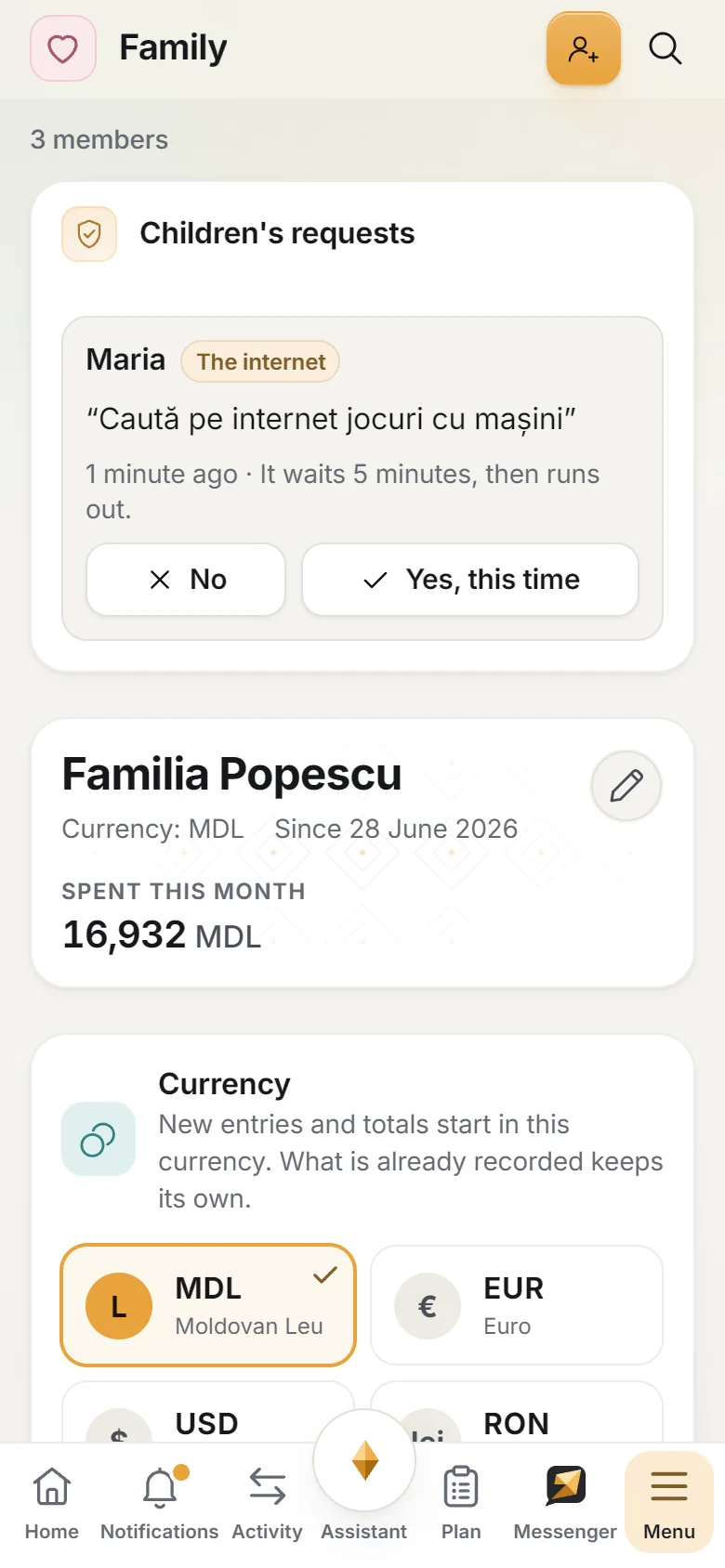
An admin can also give someone narrower rights, from Rights: under Sees they can choose Only own. A person with Only own sees only the transactions they recorded or paid and does not see wallet balances, budgets or recurring payments.
What stays yours alone:
- conversations with the assistant marked Private: “Only you can see this chat.”;
- your visits to shops;
- your account's login details: the password, the codes, the passkeys.
Someone who leaves the family no longer sees the shared spending, lists and conversations.
How do I protect my account?
In Settings → Account and security, the Sign-in and security part has three protections.
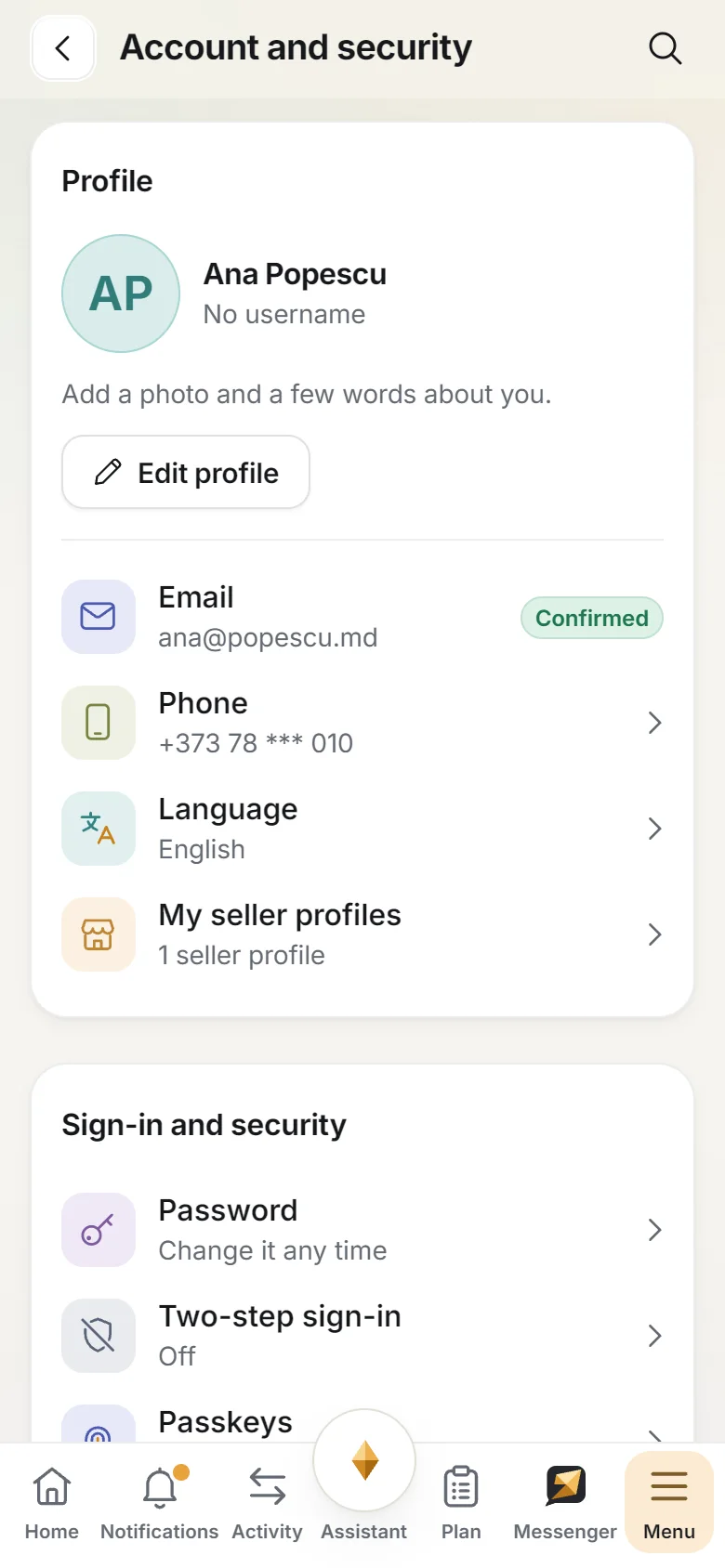
Two-step sign-in (2FA). When you sign in, you are asked, besides the password, for a 6-digit code from your authenticator app. You get 10 recovery codes, which you see only once. Satelit keeps only their cryptographic fingerprint, not the codes. To turn it off, you are asked for the password and a code.
Passkeys. You sign in with the fingerprint, face or PIN of your phone or computer, without a password. The key stays on your device, and Satelit keeps only its public part. The key works only on app.satelit.md, so a fake page cannot use it.
Connected accounts. Google, Apple, Facebook or Telegram can open the account. To add or remove one, you are first asked for the password and, if it is on, the 2FA code. The last way of signing in cannot be removed.
Every time your sign-in methods change, you get an email. If it was not you, the button in the email takes you to change the password.
Where do I see connected devices?
The Devices list in Settings → Account and security shows each open session, with the device and its last use. The current session has the This one label.
- Tap Sign out next to a device to close only that session.
- Tap Sign out the others to close all of them except the current one.
- Tap Sign out everywhere to sign out of this device too.
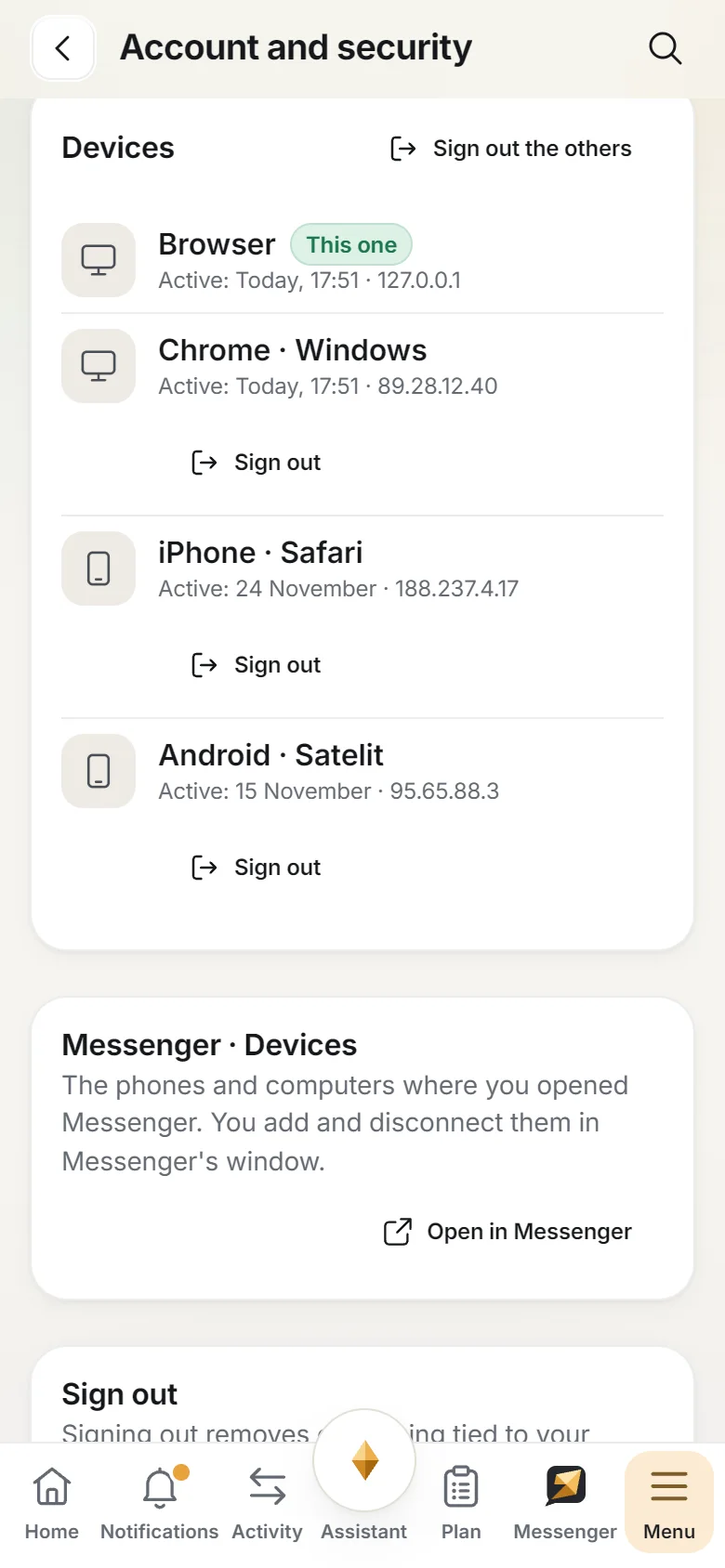
Changing or resetting the password closes all sessions. On Sign out, Satelit deletes the data saved offline, the cached files and the notifications from the device. Only the theme and the language stay.
If something goes wrong
I cannot turn on two-step sign-in
The email address must be confirmed first. In Settings → Account and security, tap Send the confirmation link and open the link you receive.
I lost the phone with my authenticator app
Sign in with a recovery code. Then turn 2FA off or set it up again in Settings. If you have few codes left, tap New codes: the old ones will stop working.
I see a device I do not recognise
Tap Sign out next to it, then change your password. Changing the password closes all sessions.
The browser cannot create a passkey
Try an up-to-date Chrome, Safari or Edge. If the window closed before the end, nothing was added and you can try again.
I cannot remove a connected account
It is your only way of signing in. First set a password or add another way, then try again.
Frequently asked questions
Can anyone see my shop password?
No. The password is sent encrypted, stored encrypted (AES-GCM) and never shown again, neither to you nor to anyone else.
Does Satelit place orders on my behalf?
No. Satelit imports orders and fills the cart at connected shops, but you place the order yourself.
Do other family members see my conversations with the assistant?
No, if the conversation is “Private”: only you see it. The whole family sees a conversation marked “Family”.
What do I do if I lose the phone with my authenticator app?
Sign in with one of the recovery codes. Each one works only once; after signing in you can turn 2FA off or set it up again in Settings.
Does Satelit learn my fingerprint or face if I use a passkey?
No. Your fingerprint, face or PIN stay on the device. Satelit keeps only the public part of the key.
How do I sign out on a device I no longer have?
In Settings → Account and security, under “Devices”, tap “Sign out” next to that device or “Sign out the others”.
Does Satelit use usage statistics?
Yes, if you leave them on: Google Analytics sees which screens and buttons are used, without names, email addresses or amounts. You turn them off in Settings → Privacy and data.
Read next
- Exporting your data and deleting your accountHow to download your data from Satelit, how to delete your account for good, what is deleted at once, what stays in the family and what happens to it.
- Getting started with SatelitWhat Satelit is, how to create an account, sign in with email, Google, Apple, Facebook, Telegram or a passkey, and what to do after you first sign in.
- Satelit without internetWhat you can do in Satelit without internet, how expenses and lists added offline are saved and how they go to the server once the network is back.
- The web app app.satelit.mdHow to use Satelit in the browser at app.satelit.md, how to install it on your phone's or computer's home screen and how it updates itself.