Money and budgets
In short
Satelit keeps track of the family's money: transactions, accounts, budgets and reports, all in lei (MDL) or in the family's currency. You add an expense from Transactions, scan a receipt or import the bank statement, then check in Budgets whether you are on track and in Reports where the money goes.
What does Satelit do with the family's money?
Satelit keeps the family's transactions, accounts, budgets and reports in one place. They are all in the Money group in Menu (Accounts, Budgets, Recurring payments), while Transactions and Reports sit right at the top, in the main group. Amounts are shown with two decimals, in the family's currency, usually lei (MDL).
Each transaction has an amount, a date, a place (“Where”), a category and the person who paid. It can also have the products from the receipt, a note and photos.
How do I add an expense?
The simplest way is to type it in by hand, in a few seconds.
- Open Transactions.
- Tap Add, then Add expense (or Add income for a salary or a refund).
- Enter the Amount, for example 245.30 MDL.
- Under Where, type the shop, for example “Linella”, “Pharmacy”, “Market”.
- Choose the Category, the Date and Paid by.
- Tap Save. The message “Transaction saved.” appears.
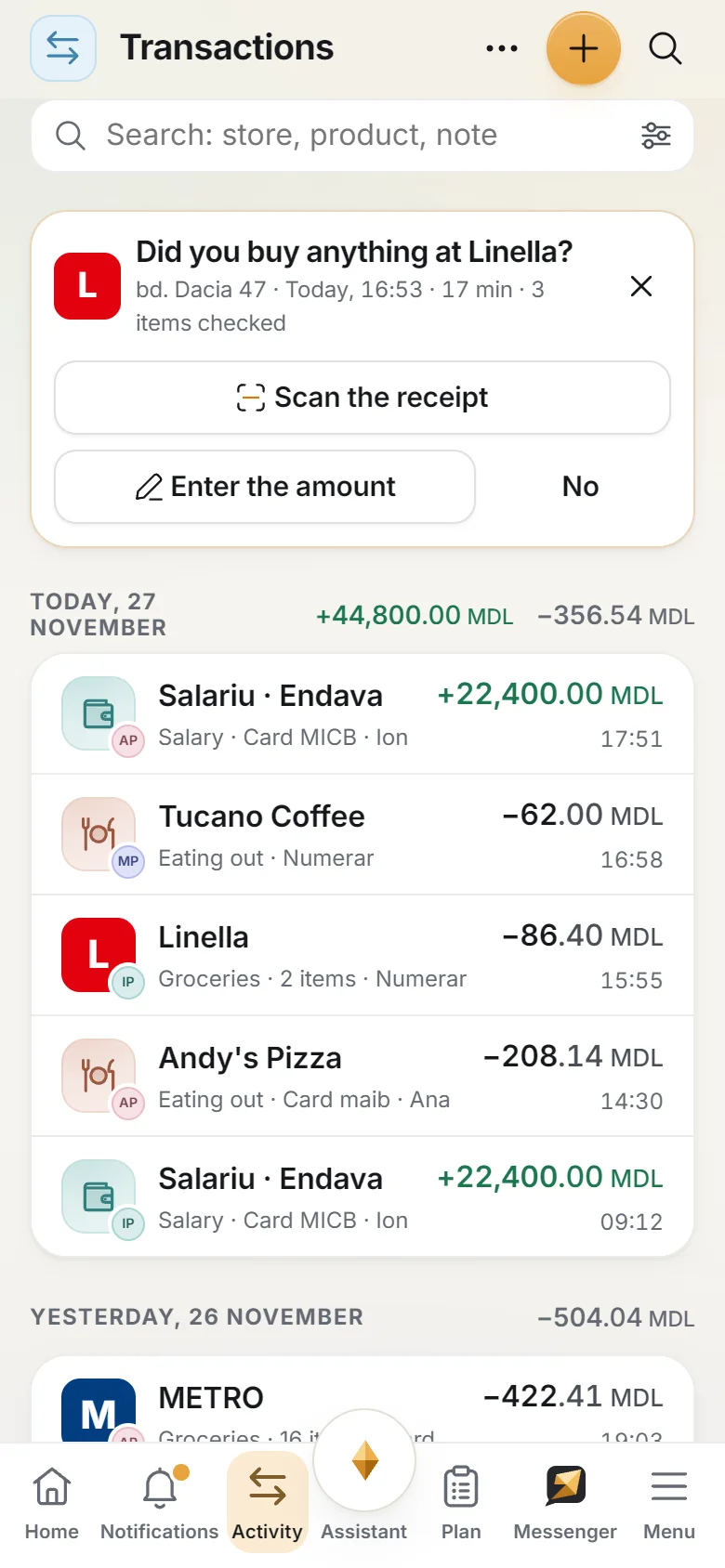
Without internet, the transaction stays on the phone (“Saved on this device. It will sync when you're back online.”) and is sent automatically when the connection returns.
If you moved money from one account to another, use Transfer between accounts. A transfer is neither spending nor income.
How do I scan a receipt?
Scanning reads the receipt for you: the amount, the products and the date.
- In Transactions, tap Scan receipt.
- Choose Take photo or Choose from gallery. Photograph the whole receipt, straight and well lit.
- Check the data at the Check the receipt details step. Lines read with low confidence are marked.
- Tap Save. Nothing is saved before that.
If the payment on the receipt is already recorded, Satelit offers Complete the payment: it adds the products and the receipt photo to the existing payment, without a second expense. Scanning uses the assistant, so it uses tokens from your plan; you can always choose Enter manually.
How do I import a bank statement?
A statement downloaded from your bank's app can be imported directly, as PDF, Excel, CSV, HTML (the maib monthly report) or MT940.
- Tap Import statement.
- Tap Choose file, or Photograph a page for a paper statement.
- Choose the account under Into account, or let Satelit recognise it from the statement.
- Tap Read the statement, check the lines and confirm the import.
Excel, CSV, HTML and MT940 files are read for free. PDFs and photos use tokens from your plan. Nothing is saved until you confirm.
What are accounts?
An account is where the money is kept: Cash, Card, Bank account, Savings, Credit or Crypto. On the Accounts screen you see Total across accounts, what is Available and Debt.
- Open Accounts and tap New account.
- Enter the Name, for example “maib card” or “Wallet”.
- Choose the Type and enter the Opening balance: how much was in the account when you started tracking it. For credit, write the debt with a minus sign.
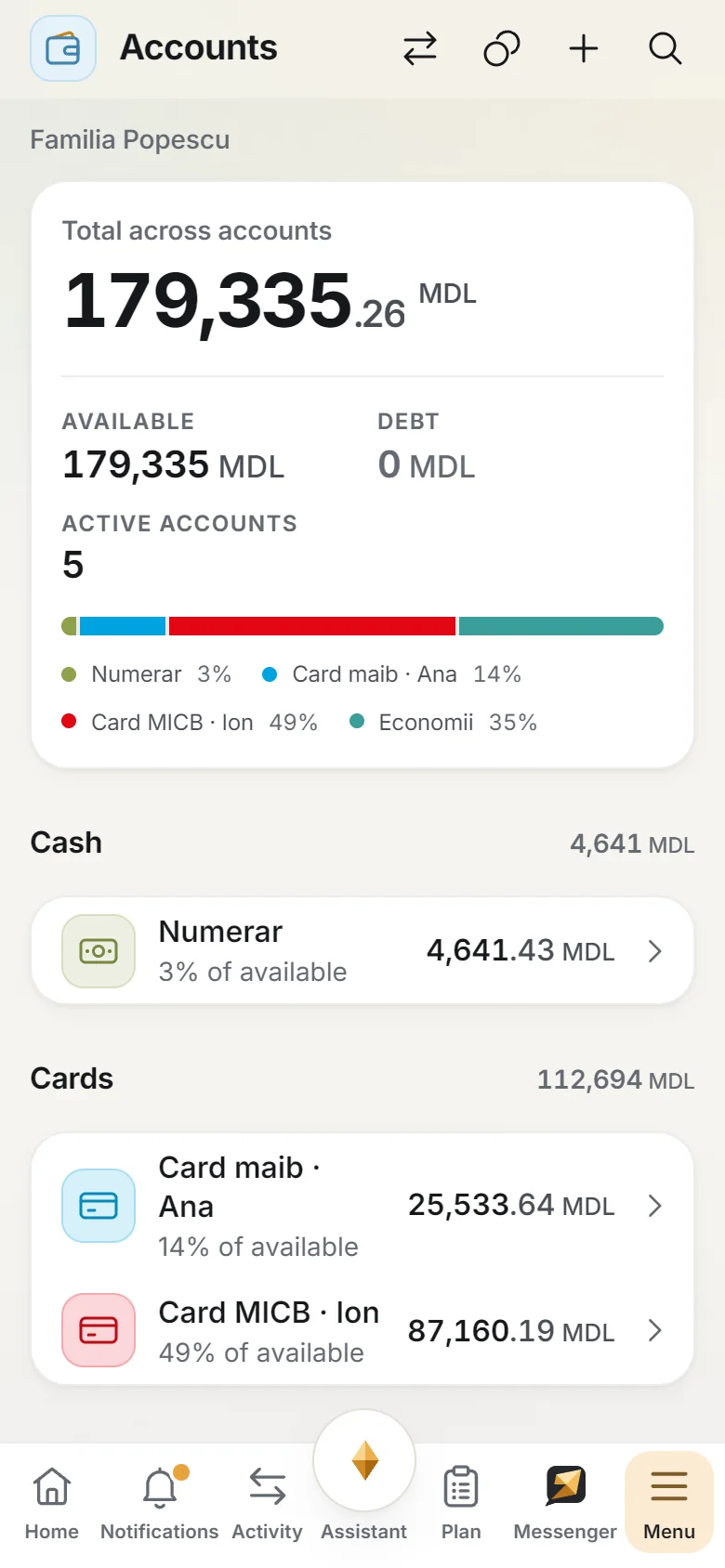
An account you no longer use can be put in Archive. It no longer appears when you choose an account, but its history stays.
How do budgets work?
A budget is the amount the family wants to stay under in a month, in total and by category. The steps are above, under “How to set a monthly budget”.
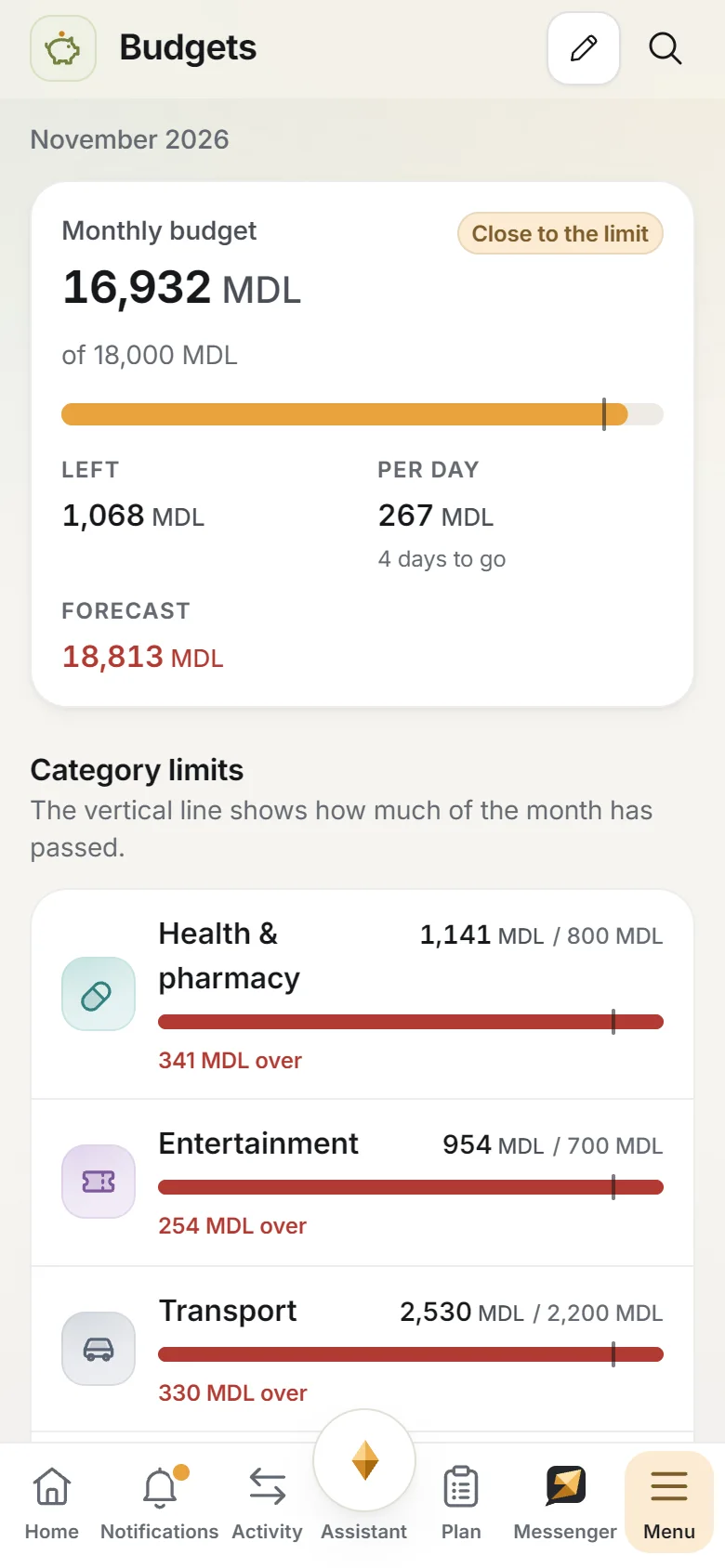
Each limit has a status: On track, Ahead of pace, Close to the limit or Over. The vertical line shows how much of the month has passed. Below it you see how much is left, how much you can spend per day and a forecast. Under Worth a look you see the categories that go or will go over their limit.
What do reports show?
Reports show where the money went in a Week, Month, Quarter, Year or a chosen Range.
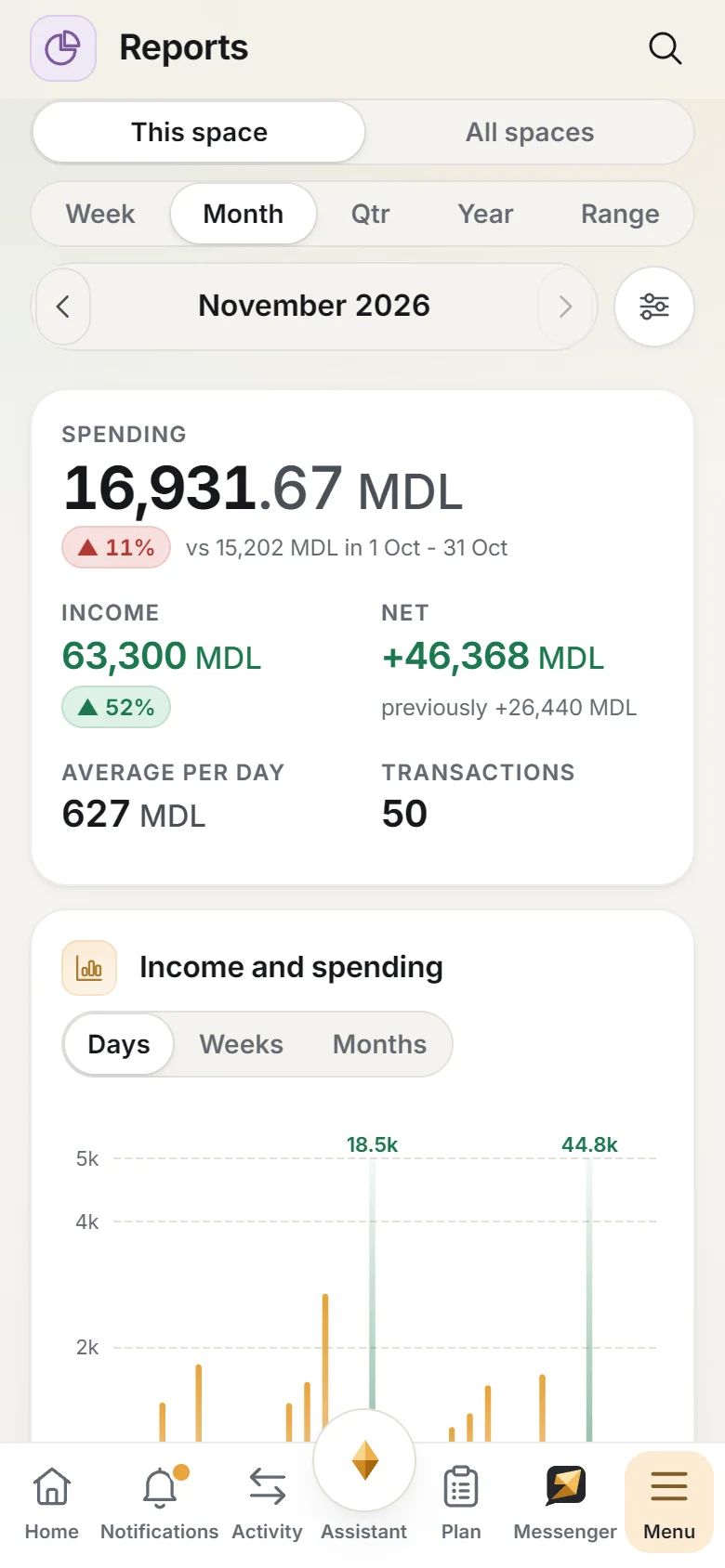
You see Spending, Income, Net, Average per day and the comparison with the previous period, the By category chart and Cash flow and balance for the last 12 months. Products bought lists the products from receipts and orders, and Biggest price changes shows how much prices went up or down. You can filter by account and by member.
What are recurring payments?
Recurring payments are the bills, subscriptions and income that come regularly. Tap Recurring payment to add one. The screen groups them into Overdue, Bills, Subscriptions, Regular income and Paused, and shows how much is Due in 7 days.
If something goes wrong
I cannot change a transaction
The message “You do not have the right to change this transaction.” means your rights in this space do not allow it. Ask an admin to change your rights, see Family and roles.
I do not see budgets or balances
Budgets and balances are visible only to those who see all records in the space. If you see “You see only your own records in this space.”, you have the “Only own” right.
The receipt is not read
Try a clearer photo, with the whole receipt, straight. If “Your plan is out of tokens” appears, enter the receipt manually or see Subscription.
Filters show nothing
“Nothing matches these filters.” means no transaction matches. Choose another period or remove a filter.
Frequently asked questions
Can I use Satelit without connecting my bank?
Yes. You can add each expense by hand, scan the receipt or import the statement downloaded from your bank's app. No connection is required.
What spending categories are there?
Satelit has 26 spending categories, for example Groceries, Utilities, Transport, Kids, Health & pharmacy, and 3 income categories: Salary, Refunds and Other income.
Who can change the family's budgets?
The family's owner and admins can change budgets. Someone who sees only their own records does not see budgets or account balances.
Are lei and euros added together in reports?
No. Totals are calculated separately for each currency, and transfers between accounts count neither as income nor as spending.
Can I add an expense without internet?
Yes. The transaction is saved on the phone and sent when the internet is back. Scanning a receipt needs internet.
Can I download transactions as a spreadsheet?
Yes, from Transactions → Export, in XLSX or CSV format, if you have the export right in that space. The file includes only the transactions you can see.
Read next
- Family, boards and rolesHow to invite members to the family or a board, what the Owner, Admin, Member and Viewer can do, and how to add a child to the family.
- Shop connectionsWhich shops can be linked to Satelit, what is imported from them, how login details are kept encrypted and why Satelit never places orders.
- Satelit AI: the assistant and voiceWhat Satelit AI can do with the family's money, lists and prices, how you talk to it, what needs your confirmation and how plan tokens are used.